

PicWish
PicWish is an AI photo editor for the web, desktop and mobile that handles everyday image chores in a few clicks. It removes backgrounds in batches of up to 30 files, unblurs and upscales photos, erases objects, text and watermarks, restores and colorizes old pictures, and builds product, flat-lay and ID photos. It's a good fit for online sellers, small marketing teams and anyone who wants clean results without learning Photoshop.
Is PicWish right for you?
Best for: Online sellers, small design teams and casual users who need fast, no-skill photo fixes such as batch background removal, unblurring, object erasing and product or ID photos. It suits people who want results in seconds rather than layer-by-layer control.
Pros
- Batch background removal handles up to 30 files at once
- Wide toolbox: enhancer, upscaler, object removal, restoration, ID photos
- Runs in the browser and as apps on Windows, macOS, iOS and Android
- Conversational editor with presets for users who dislike prompts
- Free tier lets you test tools before paying
Cons
- Free downloads are limited or lower resolution
- Cutouts can leave rough edges on hair and fine details
- Credits run out quickly with heavy upscaling or generation
- Subscription and credit tiers are hard to compare at a glance
PicWish is a practical toolbox for the repetitive photo jobs that slow people down, and the batch background remover is the standout. The trade-off is that the free tier works more as a trial than a daily workflow, and fine edges still need a manual check. Try it if you process product shots or scanned photos regularly; skip it if you need layered, hands-on editing.
About PicWish
PicWish is a collection of AI photo tools that each do one cleanup or enhancement job quickly, in your browser or in its apps. The problem it solves is familiar. You have a folder of photos that are almost usable: a product shot on a messy kitchen counter, a soft scan of an old family print, or a screenshot with a logo you need to remove. Fixing them by hand in a full editor takes skill and time that most people don't have.
It's built for online sellers who need consistent listing photos, marketers and designers who keep getting low-quality assets from clients, and regular people with a shoebox of old prints. Picture a small shop owner on a Sunday evening with 25 new items to list before Monday. That's the kind of person PicWish suits best.
The toolbox, one job at a time
PicWish doesn't use one big editor with endless panels. It gives you a menu of focused tools, and each one handles a single task. You choose the job, upload the image, and get a result in seconds. Once you get used to it, that's faster than most layer-based editors, because there's nothing to set up first.
Cutouts and new backgrounds
The background remover is the main attraction. It finds the subject on its own, and you can send up to 30 files at once. After that, you can place the cutout on a plain white background, choose a product or portrait backdrop, or build a staged scene with the product photo generator. If you sell clothing, the ghost mannequin, flat-lay, virtual try-on and outfit changer tools cover most of what a typical apparel listing needs.
Rescuing bad photos
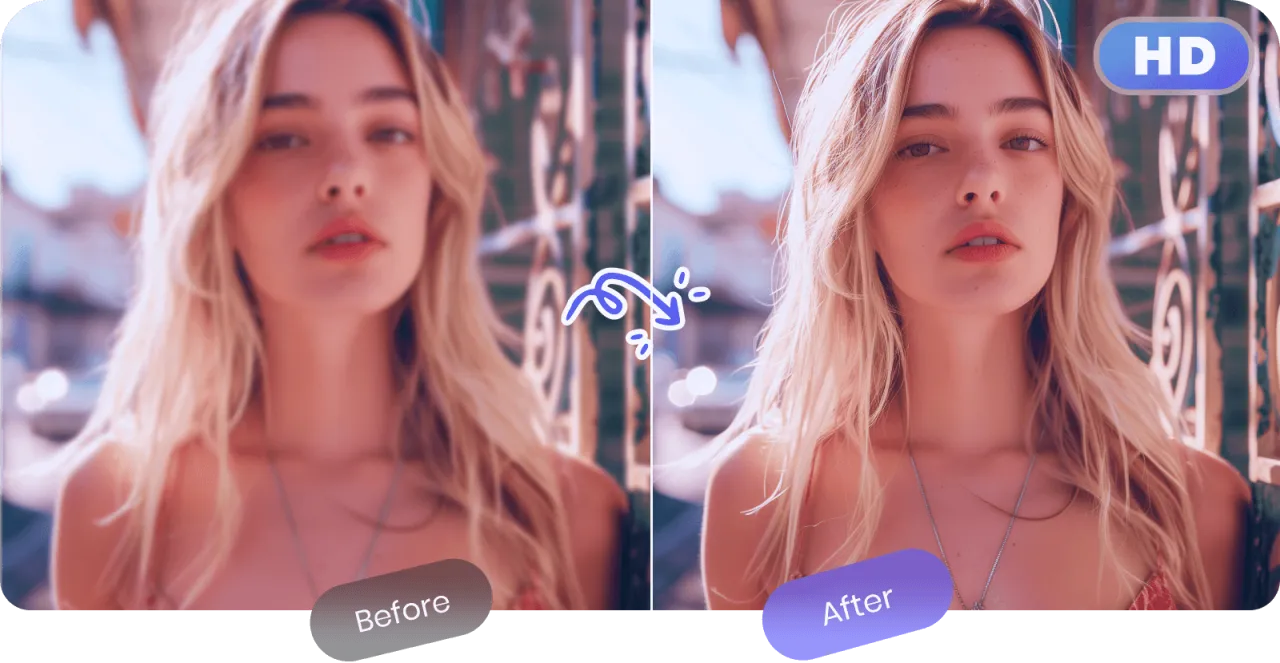
The second group of tools deals with quality. The photo enhancer sharpens and unblurs soft images. The image enlarger raises resolution, and the denoiser removes grain. Restore Old Photo repairs faded or damaged prints, and the colorizer adds color to black-and-white pictures. There's also a separate unblur-text tool for fuzzy scans of documents or sheet music, which is more useful than it sounds.
Erasing what you don't want
There's a dedicated eraser for almost every annoyance: objects, people, text, logos, shadows, glare, stickers and watermarks. The image extender works the other way. It adds more canvas around a photo, for example when a tightly cropped picture needs to fit a wide banner.
Editing by describing it
PicWish also has a chat-style AI editor. You type the change you want in plain English, and it applies the edit. If you'd rather not write prompts, scenario presets give you a starting point. Around these main tools you'll find small utilities: a compressor, a cropper, JPG and PNG converters, image-to-text, an ID photo maker, a face cutout tool, an AI art generator, and a few fun extras like a meme generator and a sticker maker.
Your first session, step by step
- Open the PicWish website and start with Remove Background from the Popular Tools menu. It's the quickest way to see what the service does well.
- Drag in a few photos at once instead of a single image so you can see how batch processing works.
- Zoom in on the edges of each cutout, especially around hair, fur, lace and thin straps, before you go further.
- Choose an output: a transparent PNG, a white background, or one of the backdrop options.
- Download one result and check the resolution. Free downloads are limited, so it's worth seeing what you get before you build a workflow around the free tier.
- If you'll use it often, install the app for Windows, macOS, iOS or Android. The apps include extra features.
A real example: twelve mugs, one evening
Say Dana runs a small ceramics shop. She has photographed twelve handmade mugs on her studio table, with a paint-splattered cloth in the background. Her marketplace wants clean, consistent images, and she wants a few lifestyle shots for social media too.
She drops all twelve photos into the background remover and waits a moment. Eleven cutouts look clean. One mug has a slightly chewed edge around the handle, so she re-runs that photo and saves the better version. She then exports the set on a white background for the marketplace.
For social media, she opens the AI photo editor with one of the original shots and types:
Replace the background with a sunny wooden breakfast table, keep the mug and its shadow exactly as they are.
She compares a couple of variations, picks the one with the most natural lighting, and runs the final image through the enhancer for a bit more sharpness. The marketplace photos and a few social posts are ready in well under an hour. Doing the cutouts by hand would have taken her most of the evening.
Who else gets real use out of it
- Fashion resellers: Ghost mannequin and flat-lay tools turn quick hanger or mannequin shots into tidy listing images without a studio setup.
- Family historians: Restore scratched prints, colorize black-and-white portraits and sharpen old scans before sharing them with relatives.
- Musicians and teachers: The text unblur tool can clean up blurry scans of sheet music or handouts so they're readable again.
- Marketers handling client assets: Upscale a low-resolution logo photo, remove a stray watermark you have the rights to clear, or extend an image to fit a banner.
- People renewing documents: The ID photo maker crops a portrait and sets a plain background for passport or visa photos. Always check the result against your country's official requirements.
- Developers and larger shops: The API for Business lets you plug background removal and other tools into your own product or catalog pipeline.
Tips for cleaner results
- Shoot your subject against a background that contrasts with it. A dark product on a light surface cuts out much more cleanly than beige on beige.
- Give the enhancer and enlarger the largest original you have. They can recover detail, but they can't create a sharp image from a tiny thumbnail.
- Batch photos that were taken under similar conditions. You can spot problem images faster and re-run only those.
- In the chat editor, say what should stay unchanged as well as what should change. Mentioning the product, its shadow or a person's face reduces unwanted edits.
- For small blemishes, use the specific eraser tool (text, logo, shadow, glare) rather than the general editor. The dedicated tools are more predictable.
- Plan which tasks you'll spend credits on. Generation-heavy tasks use credits faster than simple cutouts, so save them for images that really need them.
Where it falls short
The free tier is for trying the tools, not for daily work. Full-quality downloads for most features come with a subscription, so if you need publication-ready files, budget for a plan or expect to work around smaller outputs.
Automatic cutouts are good but not perfect. Fine hair, fur, transparent glass and very busy backgrounds can leave rough or halo-like edges. Check those areas at full zoom. Sometimes a re-run or a better source photo fixes the problem faster than any setting.
PicWish also isn't a full design or layout tool. You won't get layers, typography controls or multi-page projects. Use it to prepare clean images, then build the final design somewhere else. Finally, removing watermarks or logos is a technical feature, not permission. Only remove marks from images you have the rights to edit.
What users say about PicWish
Many users praise the background remover for being fast and clean, and they especially like being able to process a batch instead of one image at a time. Another common theme is convenience: users like that the enhancer, upscaler, object removal and photo restoration tools are all in one place, and that the service works on the web, on desktop and on phones. The ready-made backgrounds and templates for product and ID photos also come up often.
The complaints are just as consistent. A common frustration is that free downloads are limited or lower in resolution, even though users appreciate the free credits for testing. Some users say cutouts can leave rough edges around hair and fine details. Heavier users often report that credits run out quickly, and several say the mix of subscriptions and credits is confusing to compare.
Pricing in plain words
You can try PicWish for free with a limited allowance. Paid subscriptions add free HD downloads for most online features plus a monthly pool of credits, with tiers such as 450 or 2,000 credits per month. The pricing page explains how many images each tier covers for different features and says you can cancel anytime. There are also separate API plans for businesses and an education discount.
If you only fix a few photos now and then, the free tier and a few credits may be enough. If you list products every week or edit photos as part of your job, a subscription makes more sense. Teams that want to automate image processing should look at the API plans. Current prices are listed on the official pricing page. The company also says it is ISO/IEC 27001 and 27701 certified and GDPR compliant, which may matter if you handle client images.
Alternatives worth a look
If all you need is fast, reliable background removal, remove.bg is simpler and more focused. Online sellers who want realistic shadows, staged scenes and a phone-first workflow may prefer Photoroom. If you want more manual control, with a real browser editor, layers and AI fill, Pixlr is the better fit.
Our take
PicWish is a practical toolbox for the photo jobs most people put off, and its batch background remover alone is worth trying. It works best when you treat it as a fast preparation step, not a complete design studio. Test the free tier, check your edges at full zoom, and pay for a plan only once you know which tools you'll actually use.
Features
Available On
PicWish FAQ
Is PicWish free?
PicWish is free to try, and most online tools can be used without paying. Free downloads are limited or lower resolution; HD downloads and extra credits require a subscription plan.
What is PicWish used for?
It handles everyday photo edits: removing backgrounds in batches, unblurring and sharpening images, erasing objects, watermarks and text, restoring old photos, and making product or ID photos. It also includes smaller utilities like compression, format conversion and image-to-text.
What platforms does PicWish support?
PicWish runs in a web browser and also offers apps for Windows, macOS, iOS and Android. The desktop and mobile apps add access to more features.
Does PicWish have an API?
Yes. PicWish offers a separate API plan for business use, listed on its pricing page alongside the consumer subscription tiers.