
Canva
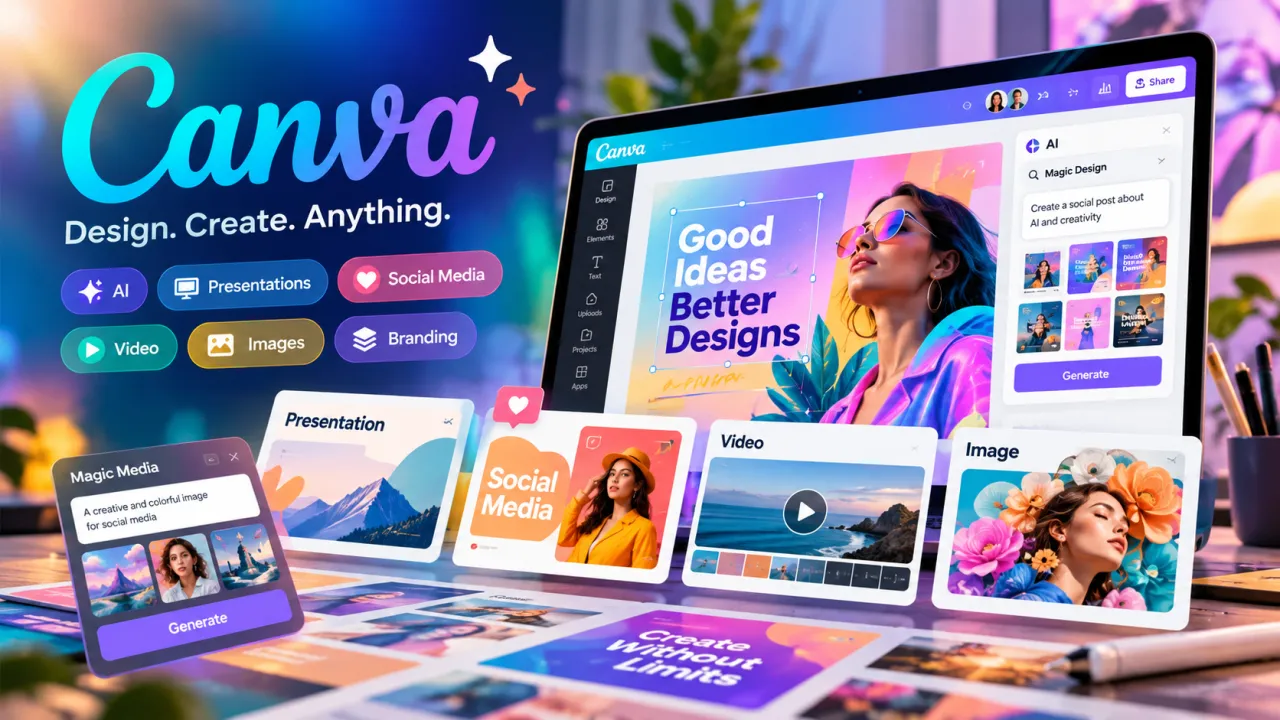
Canva is a browser-based design platform for making social posts, presentations, product mockups, flyers, videos and other visuals from ready-made templates. It suits people without design training, such as small business owners, Etsy sellers, marketers, teachers and teams. It also includes AI tools for writing, image generation and photo edits. A free plan is available, and many templates and features require a paid plan.
Is Canva right for you?
Best for: Small business owners, Etsy sellers, marketers, teachers and teams without design training who need social posts, presentations, product mockups, flyers or simple videos quickly. It works best for template-based design and everyday image edits, not detailed professional production work.
Pros
- Huge template library covering social posts, decks, posters, mockups and more
- Drag-and-drop editor beginners can pick up with almost no setup
- In our use, product mockups for Etsy listings come together quickly
- Real-time collaboration and comments for teams working on shared designs
- Free plan handles a good share of everyday design work
Cons
- Many of the best templates, assets and tools, including background removal, require a paid plan
- Users often report a lack of advanced tools for precise or professional design work
- Large or complex projects can slow down, according to recurring user feedback
- Some users find the interface cluttered and certain features hard to locate
Canva has been a dependable workhorse for us, whether we are building Etsy mockups, making quick image edits or producing everyday designs, and we have not hit any major problems. The trade-off is a ceiling on precision and a paywall around many of the most appealing templates and features, which some individuals find pricey. Start with the free plan if you need good-looking visuals without learning professional software, and upgrade only when premium items keep getting in your way. We have not tested the AI tools ourselves, so treat them as an extra rather than the reason to sign up.
About Canva
Canva is an online design tool that lets you make good-looking graphics, presentations and documents by editing templates instead of starting from a blank canvas. It's built for people who need visuals regularly but aren't designers. Think of the shop owner who needs a sale banner by tonight, the teacher putting together a worksheet, or the freelancer who wants an Instagram post that doesn't look homemade.
We use Canva for a few things: building mockups for Etsy shop listings, quick image edits, and general design work. Overall it has worked well for us, and we haven't run into any major problems. We haven't tried its AI features ourselves yet, so in the sections below we describe them based on what Canva offers rather than on our own testing.
How Canva fits together
Templates do most of the heavy lifting
The core of Canva is its huge template library. You pick a format, such as an Instagram story, a YouTube thumbnail, a pitch deck, a poster or a business card. Then you choose a design you like and swap in your own text, photos and colors. For example, if you need a "Summer Sale" post, you can search for that phrase, find dozens of ready layouts, and change the wording and product photo in a couple of minutes.
A drag-and-drop editor anyone can learn
Everything happens in a canvas-style editor. You drag elements around, resize them, change fonts, add shapes, icons and stock photos, and group things together. There's no layer panel to fight with, and you don't need to understand file formats or color profiles. When you're done, you download as PNG, JPG, PDF or video, or share a link.
Photo editing and mockups
Canva handles everyday photo edits well: cropping, filters, brightness and contrast, and placing photos inside frames. This is also where we get a lot of value for Etsy. You can place a design onto a product mockup, such as a mug, a t-shirt or a framed print, so buyers see what the finished item looks like. On paid plans, Canva also offers one-click background removal, which saves a lot of time with product photos.
The AI layer
Canva has added a set of AI tools on top of the editor. These include text generation for drafting copy, text-to-image generation, and AI photo edits such as erasing unwanted objects, filling in selected areas and expanding an image beyond its edges. It also includes AI help for building presentations. As mentioned, we haven't put these through their paces yet. Treat them as a bonus on top of the template-and-editor workflow, not the main reason to sign up.
Teams and brand consistency
Several people can edit the same design at once and leave comments. Paid plans add brand kits, so your logos, fonts and colors are one click away. They also add a resize feature that turns one design into versions for different social channels. If you post the same campaign on Instagram, Facebook and LinkedIn, that resize alone can save an afternoon.
Your first session, step by step
- Sign up on the official Canva website with an email address or a Google or Apple account. You can also install the mobile or desktop app.
- On the home screen, type what you want to make (for example "Etsy banner" or "presentation") or pick one of the suggested formats.
- Browse the templates in the left panel. Click one to load it onto your canvas. A small crown icon usually marks premium items.
- Click any text to rewrite it. Drag your own photos from the "Uploads" tab onto image placeholders to replace them.
- Use the top toolbar to change fonts, colors and effects. Use the "Elements" tab to add shapes, icons and stock images.
- When it looks right, click "Share" and then "Download". Pick the file type and size you need.
A real example: listing images for a new Etsy product
Say you sell printable wall art on Etsy and you've just finished a new botanical print. Etsy listings perform better when buyers can picture the art in a room, so you want three or four mockup images.
You open Canva and search the templates for something like:
wall art mockup living room frame
You pick a clean scene with a framed print on a wall above a sofa. You upload your artwork file, drop it into the frame, and adjust the crop so the key part of the design stays visible. Then you duplicate the page and try a second scene, maybe a bedroom or a gallery wall, plus a close-up showing the detail. On a final page, you add a simple text graphic that says "Instant download, 5 sizes included" in your shop's fonts.
Download all pages as high-quality JPGs, upload them to your listing, and you're done. The whole job takes roughly as long as writing the product description. This is exactly the kind of task where Canva has been dependable for us.
More ways people put Canva to work
- Small business owners: Make menus, flyers, price lists and social posts that match each other, without hiring a designer for every small update.
- Social media managers: Build one campaign design and resize it for each platform, then keep everything on-brand with saved colors and fonts.
- Teachers and students: Put together worksheets, class presentations, posters and infographics that are easier to read than a plain document.
- Freelancers and job seekers: Create a polished resume, a portfolio deck or a client proposal that stands out from a standard word-processor file.
- Event organizers: Design invitations, name badges, signage and printed programs from a single matching template set.
- Content creators: Make YouTube thumbnails, short social videos and podcast cover art in the same place.
Tips for better results
- Filter out premium items if you're on the free plan. Otherwise you'll fall in love with a template only to find a watermark on the elements you used.
- Change more than the text. Popular templates get used a lot. Swap the colors, fonts and layout a bit so your design doesn't look like everyone else's.
- Upload high-resolution images, especially for mockups and print. A blurry source photo will stay blurry no matter how nice the template is.
- Make your own master templates. Once you have a design you like, duplicate it for each new post instead of starting over. That keeps your feed or shop consistent.
- Check print settings before ordering prints. Use the PDF Print download option and look at margins and bleed so nothing important gets cut off.
Where Canva falls short
Canva is built for speed and simplicity, and that has a cost. If you need precise vector work, complex typography, detailed photo retouching or print-production control, you'll hit its ceiling fairly quickly. Professional designers usually treat it as a quick-turnaround tool next to dedicated software, not as a replacement.
The free plan is generous for basic work, but many of the most attractive templates, stock photos and handy features are reserved for paid plans. Very large or complex projects, like long presentations full of images and video, can also feel sluggish. Splitting big projects into smaller files helps.
Finally, think about originality. Because millions of people use the same templates, a lightly edited design can look familiar. If brand identity matters, customize heavily, or use Canva to carry out a style you've defined elsewhere.
What users say about Canva
Many users say Canva is one of the easiest design tools they've tried. They describe it as intuitive even for complete beginners and quick to start with almost no setup. The template library comes up again and again as a highlight. People like having a polished starting point for almost any format, and many say it saves them a lot of time. A common theme is that it lets people without design skills produce graphics that look professional.
The most frequent complaint is about money. Users often note that many of the best templates, assets and features sit behind paid plans, and some individuals find the subscription expensive. More experienced users also say there aren't enough advanced tools for detailed or professional work.
Other recurring complaints concern performance and layout. Some report slowdowns on large or complex projects. Others find the interface cluttered and say certain features are hard to find as the product keeps growing.
Which Canva plan makes sense
Canva runs on a freemium model. The free plan covers a lot of everyday design work and is the right place to start, especially if you only make occasional graphics. Solo users who rely on it often, for example Etsy sellers producing listing images every week, usually get the most out of the paid individual plan. It unlocks premium templates and assets, background removal and resizing. Teams that need shared brand kits and collaboration features should look at the team plans. Current prices and plan details are listed on Canva's official pricing page, and they can vary by country, so check there before deciding.
Alternatives worth a look
If you've outgrown Canva and need real professional control, Adobe Express is a closer competitor with ties into Adobe's wider toolset. Figma suits interface design and more precise layout work, especially for teams that already work with designers. If your main goal is AI image generation rather than layout and templates, a dedicated image generator will give you more control than Canva's built-in tools.
Our take
Canva does what it promises: it makes decent-looking design fast and easy for people who don't want to learn professional software. For us it has been a reliable workhorse for Etsy mockups, quick image edits and everyday designs, with no major headaches. Start on the free plan, and upgrade only when you keep running into premium items you actually need.
Gallery
Features
Available On
Canva FAQ
Is Canva free?
Canva uses a freemium model. The free plan covers a lot of basic design work, while many premium templates, stock assets and features such as background removal and resizing require a paid plan.
What is Canva used for?
Canva is used to create social media posts, presentations, flyers, product mockups, documents and short videos from ready-made templates. It is aimed at people without design training who need visuals regularly.
Does Canva have AI features?
Yes. Canva includes AI tools for drafting text, generating images from prompts, and editing photos, such as erasing objects or expanding an image beyond its edges. It also offers AI help for building presentations.
What platforms does Canva support?
Canva runs in a web browser and also offers mobile and desktop apps. You can sign up with an email address or a Google or Apple account.