

Crevid AI
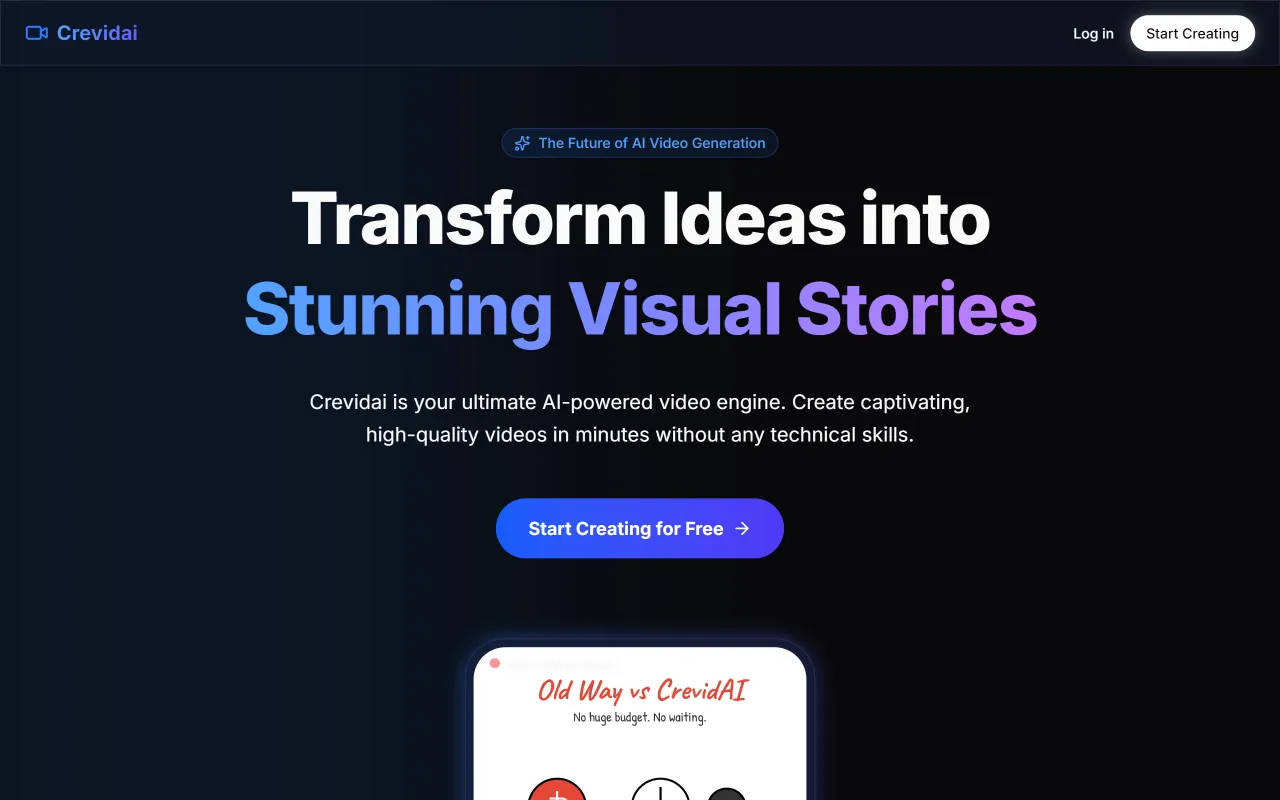
Crevid AI turns a topic or a one-line idea into a finished, narrated explainer video. It writes the script, adds voice narration, animates scenes in a Motion Graphics or Whiteboard style, and syncs captions. It's built for YouTube creators, tech educators, teachers, tutors and course creators who need clear visual explanations without editing or animation skills. You pay with credit packs.
Is Crevid AI right for you?
Best for: Teachers, tutors, tech educators, course creators and YouTube creators who need short narrated explainer videos on a single concept without scripting, recording or animating anything themselves.
Pros
- One prompt produces script, voice narration, animated illustrations and synced captions
- Two distinct styles: Motion Graphics for social reels, Whiteboard for teaching
- Every credit pack includes 1080p export, commercial rights and all languages
- No subscription; you buy credit packs and use them as needed
- Supports non-English output, with Nepali samples shown alongside English
Cons
- Limited to animated explainers; there are no avatars, live footage or realistic scenes
- A standard video uses roughly 80 to 100 credits, so the smallest pack covers only 5 to 6 videos
- The AI writes the script, so facts need human review before publishing
- The site does not explain how much you can edit a generated script or scene
Crevid AI does one thing and does it cleanly: you type a topic and get back a narrated, captioned explainer in either a punchy Motion Graphics style or a step-by-step Whiteboard style. The trade-off is range. You get two recognizable looks and AI-written scripts that still need fact-checking, and nothing beyond animated explainers. If explaining concepts is your job and you want a fast first draft rather than a weekend in an animation app, the free credits make it worth testing.
About Crevid AI
Crevid AI is a web tool that takes a topic you want to explain and returns a complete animated explainer video, with script, voiceover, illustrations and captions already in place. Picture a teacher on a Sunday evening who wants a three-minute visual on why we get fevers, or a developer who keeps explaining APIs to new teammates. Normally that means writing a script, recording narration, drawing diagrams and fighting with a timeline. Crevid compresses all of that into one prompt.
It's aimed at people whose job is explaining things: YouTube creators, tech educators, tutors, course builders and small marketing teams. If your videos depend on a real face on camera or footage you shot yourself, this isn't the right tool. If you need a clean animated explanation of a concept, it's worth a look.
How Crevid turns one sentence into a video
The workflow is a pipeline with five steps, and Crevid runs all of them for you. You type a topic such as "Explain how APIs work in simple terms using a restaurant waiter analogy." The AI turns it into a step-by-step educational script with a clear structure meant to keep viewers watching. That script then becomes voice narration with timing and pronunciation handled automatically.
Next comes the visual side. Crevid's own animation engine, which it calls Hyperframe, turns each scene of the script into matching animated SVG illustrations. Finally, the voice, animations and captions are stitched into one finished video you can download and publish. You don't have to place assets on a timeline at any point.
Two visual styles with different jobs
Motion Graphics is the punchy option: kinetic typography, bright vector shapes, animated info cards and quick scene transitions. Crevid pitches it for TikTok, Instagram Reels, YouTube Shorts and SaaS ads, where you need a hook in the first second.
Whiteboard Explainer is the classic hand-drawn look. Lines and multi-part diagrams appear step by step, as if someone were sketching while talking. This style suits technical concepts and classroom topics, for example how a database index works or how the water cycle moves.
Captions, languages and formats
Every video gets synchronized animated captions, which matters on social platforms where many people watch muted. Crevid says all languages are included on every pack, and its sample gallery includes a Nepali-language video next to English ones. Exports are 1080p HD and come with commercial rights, so you can use them in client work or paid courses.
Your first video, step by step
- Go to the official Crevid AI website and create an account. Crevid mentions free credits for new users, so you can test it before buying a pack.
- Before you type anything, browse the sample prompts on the homepage. Clicking a prompt chip shows how the same idea renders in each style, which is the quickest way to pick one.
- Write your topic as one clear request. Include the audience and, ideally, an analogy you want used.
- Choose Motion Graphics for short social clips or Whiteboard for step-by-step teaching.
- Pick your language and generate. Crevid handles the script, narration, animation and captions in one run.
- Watch the full result, then download the 1080p file and publish it, or bring it into your usual editor for a branded intro or outro.
A real example: a tech educator explains APIs
Say you run a small YouTube channel for beginner programmers. Your viewers keep asking what an API actually is, and you've never found a visual that clicks. You don't want to spend a weekend in an animation app, so you open Crevid and type:
Explain how APIs work for complete beginners using a restaurant analogy: the customer is the app, the waiter is the API, the kitchen is the server. End with one real example, like a weather app getting today's forecast.
You pick the Whiteboard style because the idea benefits from diagrams being drawn piece by piece. Crevid writes a script that opens with the customer ordering, introduces the waiter as the middleman, follows the request to the kitchen and back, and then maps it onto the weather app. The narration follows that script, the drawings appear in step, and captions run underneath.
Your next step is a review. Check that the analogy holds together and that no technical claim is oversimplified to the point of being wrong. Then publish the 16:9 version on your main channel. If you want a teaser for Shorts, run a tighter prompt in Motion Graphics style for a vertical cut.
Where else Crevid fits
- Teachers and tutors: Turn tomorrow's lesson topic into a short whiteboard video to open the class or send home as revision.
- Course creators: Convert a dense text module into a narrated explainer, so each lesson has a visual summary alongside the written material.
- SaaS marketers: Make a Motion Graphics clip that explains the problem your product solves, sized for Reels or Shorts.
- Agencies: Produce simple explainer drafts for clients quickly, then spend your human time on polishing and strategy rather than drawing.
- Local-language creators: Explain finance, tech or everyday topics in your own language, since every pack includes all languages.
- Science communicators: Answer "what if" questions, such as what would happen if Earth stopped spinning for a few seconds, in a format that holds attention.
Tips for getting cleaner explainers
- Name the audience. "For high school students" or "for non-technical managers" changes the vocabulary and pacing of the script a lot.
- Hand it an analogy. The engine does well with a concrete comparison to build scenes around, like the waiter for APIs or a postal system for networks.
- Match style to platform. Use Whiteboard for teaching depth and Motion Graphics for quick social reach. Don't force a complex diagram into a fast reel.
- Keep one idea per video. A single focused question produces a tighter script than a prompt that tries to cover a whole chapter.
- Fact-check the script. The narration sounds confident either way, so verify numbers, dates and technical details before you publish.
- Test on the free credits first. Try both styles on the same topic before buying a pack so you know which look your audience prefers.
Limits worth knowing before you commit
Crevid makes one kind of video: an animated, narrated explainer. You can't drop in your own camera footage, use a talking presenter or generate cinematic realistic scenes. The two styles are clean but recognizable, so if you publish often, your audience may start to spot the template look. Plan to add your own intro, branding or thumbnail to stand out.
Because the AI writes the script, accuracy depends on how well the model knows the topic. It's fine for well-established concepts, but niche, recent or sensitive subjects, especially health or finance, need careful human review. The site doesn't spell out how much you can edit a generated script or scene afterward, so test that on your free credits if fine control matters to you. Testimonials on the site make big claims about saved hours and views; treat those as marketing and judge by your own first few videos.
What the credit packs mean in practice
Crevid has no subscription. You buy credit packs, and every pack includes the same features: both styles, 1080p HD export, commercial rights and all languages. The three packs are 500 credits (Crevid estimates 5–6 standard HD videos), 1,300 credits (about 13–16 videos) and 2,200 credits (about 22–27 videos), with higher render priority on the larger pack. That works out to very roughly 80–100 credits per standard video.
The smallest pack is meant for trying Crevid on a few projects, the middle one suits creators posting regularly, and the largest is aimed at agencies and heavy users. Prices aren't shown in the information we have, so check the pricing section of the official site for current amounts. New users get free credits to start, which is the best way to decide whether the output fits your channel.
Other tools to consider
If you want a human-looking presenter rather than illustrations, HeyGen is a better match. It turns scripts and slide decks into videos with realistic AI avatars, which works well for corporate training and product walkthroughs.
If you need broader marketing videos built from product URLs, images or your own audio, Pexo AI Video Agent covers more input types and lets you refine the result through conversation. And if your explanation actually belongs in a slide deck or a document instead of a video, Gamma turns a prompt or rough notes into a polished presentation you can present live.
Our take
Crevid does one job and keeps it simple: topic in, narrated animated explainer out. For teachers, tech educators and creators who explain concepts all day, the two styles cover most needs, and the pay-per-pack model with every feature included is easy to understand. Just treat the script as a smart first draft, check the facts and add your own branding so the videos feel like yours.
Gallery
Features
Available On
Crevid AI FAQ
What is Crevid AI used for?
Crevid AI turns a topic prompt into a complete explainer video. It writes the script, generates voice narration, animates each scene with SVG illustrations and adds synchronized captions.
Is Crevid AI free?
Crevid mentions free credits for new users, which let you try it before you buy. After that, you pay for credit packs of 500, 1,300 or 2,200 credits, which Crevid estimates at about 5–6, 13–16 and 22–27 standard HD videos.
What video styles does Crevid AI offer?
There are two styles. Motion Graphics uses kinetic typography and vector visuals aimed at TikTok, Reels, Shorts and ads. Whiteboard Explainer draws hand-drawn diagrams step by step for educational and technical topics.
Can I use Crevid AI videos commercially?
Yes. Every credit pack includes commercial rights, 1080p HD export, both video styles and all supported languages.