
Riverside
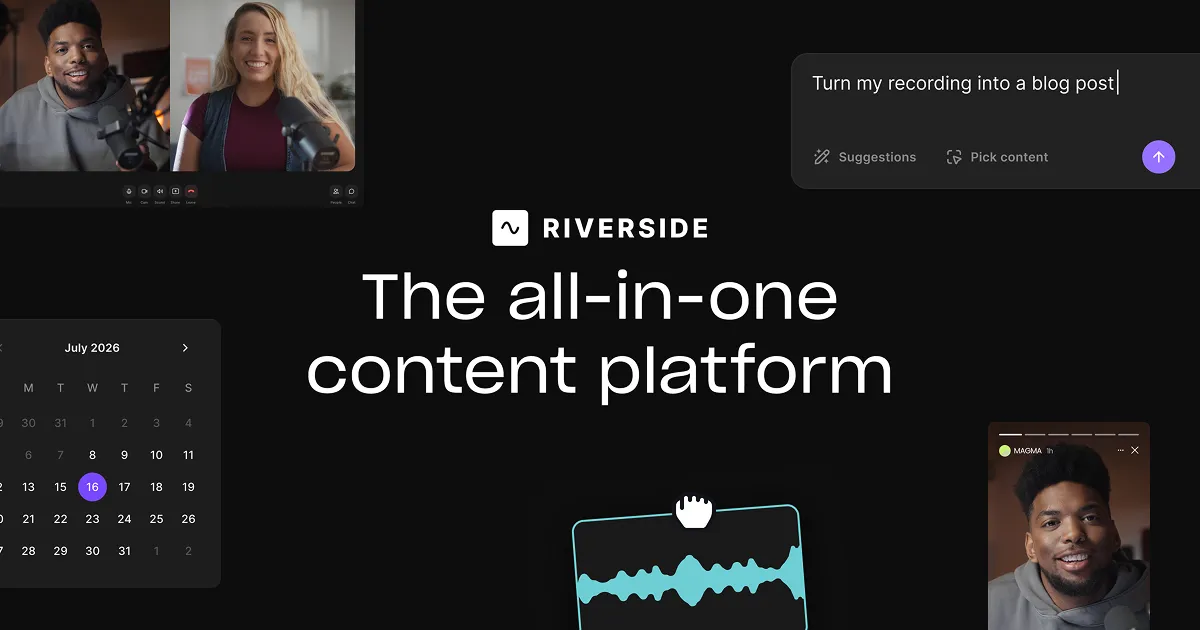
Riverside is a browser-based studio for recording podcasts, video interviews, webinars and live streams in high quality, then editing and repurposing the results with AI. Guests join from a link with nothing to install, and recordings are captured locally on each device.
Is Riverside right for you?
Best for: Podcasters, video interviewers and marketing teams who record remote conversations and want to edit, clip, host and stream them from one browser-based workspace. Webinar hosts who need registration, lead capture and repurposing in the same tool will also find a fit on the higher plans.
Pros
- Local recording keeps each guest's audio and video clean despite shaky connections
- Guests join from a browser link with nothing to install
- Text-based editing lets you cut video by deleting transcript lines
- Magic Clips turns long recordings into short social clips with captions
- Podcast hosting, publishing and multistreaming are built into paid plans
Cons
- Free plan caps video at 720p, adds a watermark and allows only 2 hours of multi-track recording
- Separate track downloads are capped per plan (15 hours on Pro, 20 on Grow, 25 on Webinar)
- Collaborative editing and custom roles require the Business plan; lower tiers need an editor add-on
- Users report the editor can lag and drift out of sync on longer projects
Riverside does the part that matters most for remote shows very well: guests click a link, everyone is recorded locally, and you end up with clean separate tracks even when someone's Wi-Fi falters. The editing and repurposing tools save real time, though users say the editor gets sluggish on long projects, and the plan structure (download caps, AI credits, Business-only collaboration) takes some reading before you commit. It's a strong pick for podcasters and marketers who want recording, clipping and publishing in one place. Teams that need a deep timeline editor should plan to pair it with dedicated editing software.
About Riverside
Riverside is an online recording studio for podcasts, video interviews, webinars and live shows. You open a studio in your browser, send a link to your guests, hit record, and everyone's audio and video is captured locally on their own device instead of being squeezed through a shaky internet call. If you've ever finished a great conversation only to find the recording was pixelated, out of sync or missing a guest entirely, that's the problem Riverside is built to solve.
It's aimed at podcasters, video creators, marketers running webinars, and small production teams who want studio-level results without renting a studio or hiring an editor for every episode.
What Riverside actually does
The core is the recording studio. Each participant's camera and microphone are recorded separately and locally, so you get clean individual tracks you can edit independently later. Guests just click a link in the browser — no downloads, no accounts to create. You can also record in person with multiple cameras, use a teleprompter, and control what guests see and hear from a producer view on higher plans.
Once the session ends, the editing side takes over. Riverside transcribes your recording and lets you edit the video by editing the text: delete a sentence in the transcript and the corresponding footage disappears. From there you can strip out filler words and silences, improve the audio, fix eye contact so speakers look at the camera, and add AI-generated B-roll.
For repurposing, Magic Clips pulls short highlights out of a long recording for social media, and the AI tools can draft show notes, headlines, posts and thumbnails. Captions are generated and styled to match your brand. On the publishing side, Riverside includes podcast hosting with distribution to the major podcast apps, plus publishing to YouTube, Spotify, Instagram, LinkedIn and others.
Live is the other half of the product. You can stream in full HD to multiple destinations at once — YouTube, Facebook, LinkedIn, X, Twitch, TikTok — with custom layouts, overlays and backstage controls. The Webinar plan adds registration pages, branded emails, Q&A, polls, lead capture and a HubSpot integration for pushing leads into your CRM.
How to get started
- Create a free account at riverside.com. The free tier is enough to test the workflow before paying anything.
- Set up your first studio and copy the recording link. This is what you send to guests.
- Do a short test recording with a colleague. Check your microphone and camera settings, and confirm the separate tracks look right.
- Record your session. Keep the tab open and avoid switching networks mid-recording.
- Open the recording in the editor, let the transcript generate, and try deleting a sentence to see text-based editing in action.
- Run Magic Clips to see what short highlights it finds, then export one and check the captions.
A real session, start to finish
Say you host a weekly interview podcast and your guest is a busy author joining from a hotel room. You send the studio link the day before; she opens it in her browser, checks her camera, and is ready in under a minute. You record a 50-minute conversation, and even when her Wi-Fi stumbles halfway through, her local track keeps recording cleanly.
Afterward you open the transcript and paste in a rough instruction like:
Cut the first three minutes of small talk, remove filler words, and pull five clips where she talks about her writing routine.
You get a tightened episode, a set of vertical clips with captions, and draft show notes you can edit. From there you publish the episode through Riverside's hosting, schedule the clips for social, and you're done — no separate editor, hosting service and clip tool to juggle.
More ways to use it
- Podcasters: record remote interviews in high quality, edit by transcript, and host and distribute the show from the same place.
- Marketing teams: run branded webinars with registration and lead capture, then turn one session into weeks of clips and posts.
- YouTubers and interviewers: capture multi-cam conversations and use eye-contact correction and AI B-roll to polish the final cut.
- Course creators and educators: record lessons and panel discussions, then repurpose segments into short lessons.
- Live event producers: multistream a conference or launch to several platforms at once with custom scenes and overlays.
Tips for better results
- Always run a short test recording before an important session — it catches microphone and camera problems while they're still fixable.
- Ask guests to use wired headphones and a stable connection; local recording helps, but a bad microphone still sounds bad.
- Record separate tracks whenever you can. It makes editing and level-matching between speakers far easier.
- Use the transcript as your editing surface: fixing the text is faster than scrubbing a timeline.
- Review AI-generated clips before publishing — the picks are good starting points, not final cuts.
- Keep an eye on your separate-track download hours; recording is unlimited, but downloading individual tracks is capped by plan.
Limits and things to watch out for
Riverside is a browser tool, so a weak computer or an old browser can make the editor feel sluggish, especially on long projects. Some AI features — translation, AI B-roll, animated clips — run on AI credits, so heavy use means topping up. The free plan caps you at 720p with a watermark and only two hours of multi-track recordings, which is fine for testing but not for a real show. Collaborative editing and custom roles are reserved for the Business plan, so small teams on lower tiers may need to share one editor seat or buy an add-on.
What users say about Riverside
Users consistently praise how easy it is for guests: they join from a browser link with nothing to install, and the locally recorded audio and video hold up well even when someone's connection drops. Many also mention the automatic clips as a real time-saver for social content, and describe support as helpful.
The complaints are mostly about polish. Some users report occasional recording problems such as uneven audio quality or awkward screen-sharing setup, and others mention audio sync issues or uneven volume between participants. A common frustration is that the editor can lag and drift out of sync on longer projects. Some also miss features like green screen and stronger collaboration tools, and say organizing many recordings and projects could be simpler.
Pricing in plain words
There's a free plan with 720p video, a watermark and two hours of multi-track recordings — useful for trying the workflow. Pro is the entry paid tier at $24 per month billed annually, with 4K video, no watermark, unlimited text-based editing, the AI editing agent and podcast hosting. Grow adds social scheduling, a newsletter, a creator website and full HD multistreaming. Webinar is for running webinars with registration, Q&A and lead capture, and Business adds unlimited studios, collaborative editing, API access, SSO and compliance features. Annual billing saves money, and the official pricing page lists current numbers and add-ons.
Alternatives worth a look
If you mainly need to cut and polish finished video rather than record it, CapCut is a strong free-to-start editor with AI tools for social content. For AI-generated video and avatars rather than real recordings, HeyGen turns a script into a presenter-led video. And if your bottleneck is turning recordings into transcripts and captions, TurboScribe handles transcription in many languages.
Our take
Riverside earns its place when recording quality and a smooth guest experience matter more than a deep timeline editor. The all-in-one flow from recording to clips to hosting saves real time for podcasters and marketers. Just budget for a paid plan if you're publishing seriously, and test your setup before every important session.
Features
Available On
Riverside FAQ
Is Riverside free?
Yes, Riverside has a free plan with unlimited single-track recording and editing, Magic Clips and 2 hours of multi-track recording. Video is limited to 720p and carries a Riverside watermark. Paid plans start at $24 per month billed annually with the Pro plan.
What is Riverside used for?
Riverside is used to record remote podcasts and video interviews in high quality, edit them through a transcript, and turn them into short clips, show notes and thumbnails. Paid plans add podcast hosting, live streaming to multiple platforms and webinars with registration and lead capture.
Do guests need to install anything to join a Riverside recording?
No. Guests join from a browser link without installing software or creating an account. Their audio and video are recorded locally on their own device, which helps preserve quality when the internet connection is unstable.
Does Riverside have an API?
Yes, but API access is listed only on the Business plan, along with SSO, SOC2 and ISO27001 compliance, Salesforce and Marketo integrations, and a dedicated customer success manager.